Azure Virtual Desktop Components: A Complete Guide for IT Professionals
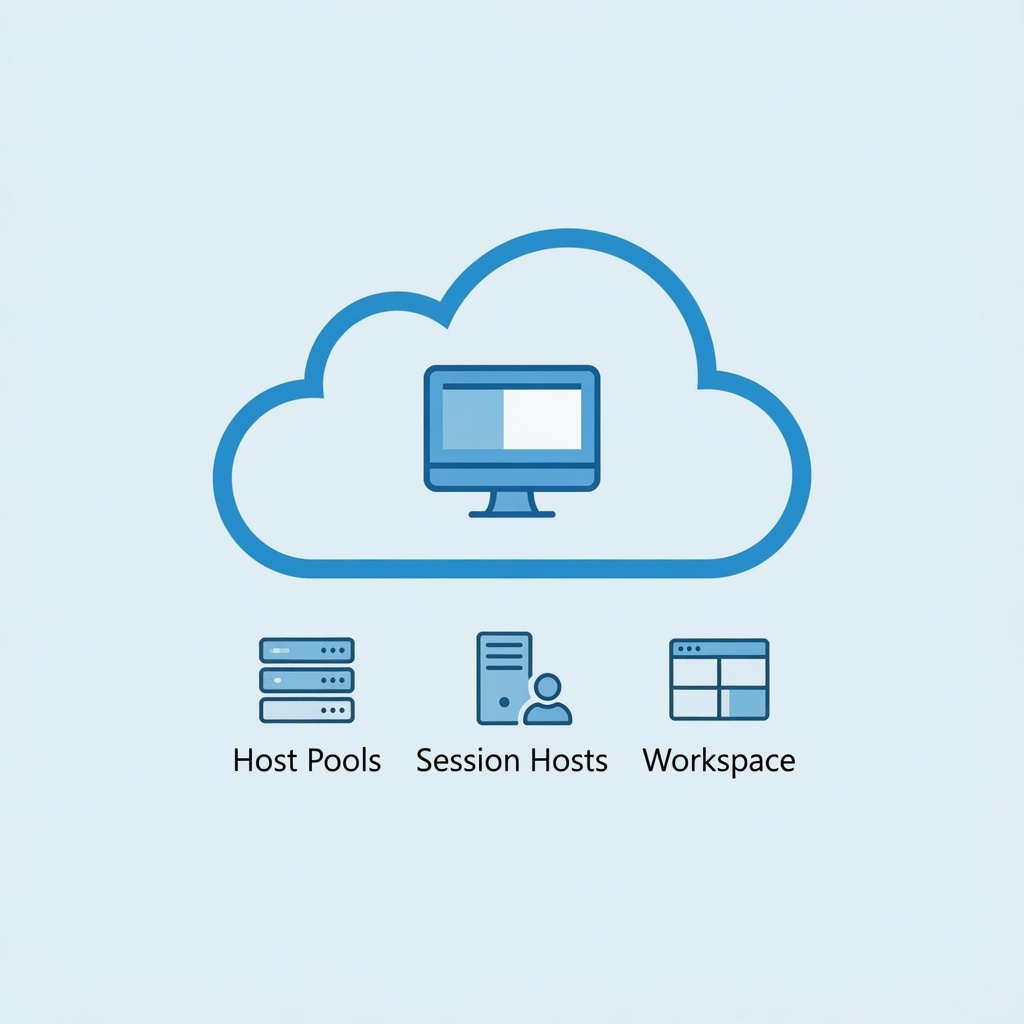
As organizations continue to embrace hybrid work models, Azure Virtual Desktop (AVD) has emerged as a leading solution for delivering secure, scalable virtual desktop experiences. Understanding the core components of AVD is essential for IT professionals tasked with planning, deploying, and managing these environments.
In this comprehensive guide, we'll break down each Azure Virtual Desktop component, explain its purpose, and provide practical insights for implementation and management.
Core Azure Virtual Desktop Architecture
Before diving into individual components, let's understand how AVD fits into the broader Azure ecosystem:
- Control Plane: Managed by Microsoft (broker service, diagnostics, load balancing)
- Customer-Managed Plane: Resources you deploy and manage in your Azure subscription
- User Experience Layer: Client applications that connect to your AVD deployment
Essential AVD Components Explained
1. Host Pools
The foundational building block of any AVD deployment, host pools are collections of Azure virtual machines that register to the AVD service as session hosts.
Types of Host Pools:
- Pooled: Multiple users share session hosts (ideal for task workers, call centers)
- Personal: Each user gets dedicated session hosts (ideal for power users, developers)
- Automatic assignment: AVD automatically assigns users to available hosts
- Manual assignment: Administrators manually assign specific users to specific hosts
Key Configuration Settings:
- Load Balancing Algorithm: Breadth-first (distributes users evenly) or Depth-first (fills hosts before moving to next)
- Session Limits: Maximum number of sessions per host
- Scale Settings: Manual scaling or autoscaling based on schedules/load
- Validation Environment: Optional separate pool for testing updates
2. Session Hosts
These are the Azure virtual machines that actually host user sessions and applications. They're the "workhorses" of your AVD deployment.
Operating System Options:
- Windows 11 Enterprise Multi-session: Microsoft's latest OS optimized for multiple concurrent users
- Windows 10 Enterprise Multi-session: Still widely supported, good compatibility
- Windows Server: For specific application compatibility requirements
Sizing Guidelines:
- Baseline: 6 sessions per vCPU for Windows 10/11 multi-session
- Memory: Start with 8GB RAM per host, adjust based on user profiles
- Storage: OS disk (128GB typical), plus separate storage for user profiles (FSLogix)
Management Options:
- Azure Portal (GUI)
- PowerShell (Az.DesktopVirtualization module)
- Azure CLI (az desktopvirtualization)
- ARM Templates/Bicep (Infrastructure as Code)
3. Application Groups
Application groups allow you to organize and publish applications and desktops to users. They sit between host pools and end users.
Types of Application Groups:
- Desktop Application Group: Publishes full desktop sessions to users
- RemoteApp Application Group: Publishes individual applications (like publishing apps in traditional RDS)
Publishing Options:
- Start menu applications (automatically discovered)
- Specific executable paths
- MSIX app attach (modern application streaming)
4. Workspaces
Workspaces act as a logical grouping that connects application groups to users. They simplify management by providing a single object to assign users to.
Key Benefits:
- Simplifies permission management (assign users to workspace instead of individual app groups)
- Provides a unified feed in the client applications
Key Considerations:
- One workspace can contain application groups from multiple host pools
- Users can be assigned directly to application groups or via workspace
- Workspace provides single sign-on to published resources
5. FSLogix Profile Container
FSLogix is a solution that manages user profiles in virtual desktop environments. It's essential for non-persistent deployments.
Why FSLogix?
- Separates user profile from OS - profiles roam with users
- Dramatically reduces storage requirements with profile deduplication
- Enables fast logon times even with large profiles
- Works with both pooled and personal host pools
Storage Options:
- Azure Files: SMB share, simple setup, cost-effective
- Azure NetApp Files: Higher performance, NFS protocol
- Storage Spaces Direct: For on-premises deployments
6. Session Hosts Management
Managing session hosts effectively is crucial for maintaining a healthy AVD environment.
Maintenance Strategies:
- Drain Mode: Gracefully disconnect users before maintenance
- Scheduled Updates: Use update rings for controlled patching
- VM Scale Sets: For automated scaling and updates
- Custom Images: Golden images with pre-installed apps
7. AVD Client Applications
Users connect to AVD through various client applications:
- Windows Client: Full-featured desktop app
- Web Client: Browser-based access (no installation)
- macOS Client: For Apple devices
- iOS/iPadOS Client: Mobile access
- Android Client: Android mobile access
- Thin Client: Partner certified devices
Architecture Best Practices
- Use separate subnets for management and session host traffic
- Implement network security groups at subnet level
- Configure load balancing based on user workload patterns
- Plan capacity based on concurrent user sessions, not total users
- Use Azure Advisor for recommendations
- Implement monitoring with Log Analytics
Frequently Asked Questions
What's the difference between pooled and personal host pools?
Pooled host pools share session hosts among multiple users, making them cost-effective for task workers. Personal host pools assign dedicated hosts to users, ideal for power users who need persistent desktop experience.
Do I need FSLogix with personal desktops?
While not strictly required, FSLogix still provides benefits like profile deduplication and simplified backup/restore of user data. It's recommended for most scenarios.
Can I use existing Windows licenses with AVD?
Yes, if you have Windows Enterprise or Business licenses with Software Assurance, you can use them for AVD session hosts. Azure also offers Windows Virtual Desktop license included in Microsoft 365 plans.
What's the minimum recommended VM size for AVD?
For light users (email, browsing), D2s_v3 (2 vCPU, 8GB RAM) works well. Power users running multiple applications need D4s_v3 or larger. Always test with representative workloads before full deployment.